Categories
MacAdmin

VMware AirWatch Munki Implementation Teardown

Hi All,

As some of you may know, I am a big fan of ye old macOS management tool Munki. Though NOT an MDM, it is a powerful tool for managing macOS device apps and preferences and loved by the MacAdmins community.  Please read through on the links above if you want to know more on those…

Anyway, for those who know what all of this wonderful stuff is and are curious on how AirWatch is using the beloved tool, read below:


AirWatch Munki Implementation

Core Folder:

/Library/Application Support/AirWatch/Data/Munki/

Binary:

/Library/Application Support/AirWatch/Data/Munki/bin/managedsoftwareupdate

Some standard install paths exist but not used; probably created by the binary on its first run.

/Library/Managed\ Installs/Cache
/Library/Managed\ Installs/catalogs
/Library/Managed\ Installs/manifests

Contents of core folder /Library/Application Support/AirWatch/Data/Munki/:

  • Managed Installs
  • MunkiCache
  • Munki_Repo
  • bin

Main preference file:

defaults read /Library/Preferences/AirWatchManagedInstalls.plist 
{
 AppleSoftwareUpdatesOnly = 0;
 ClientIdentifier = "device_manifest.plist";
 FollowHTTPRedirects = none;
 InstallAppleSoftwareUpdates = 0;
 LastCheckDate = "2018-04-25 08:28:59 +0000";
 LastCheckResult = 0;
 LogFile = "/Library/Application Support/AirWatch/Data/Munki/Managed Installs/Logs/ManagedSoftwareUpdate.log";
 LogToSyslog = 0;
 LoggingLevel = 1;
 ManagedInstallDir = "/Library/Application Support/AirWatch/Data/Munki/Managed Installs";
 OldestUpdateDays = 0;
 PendingUpdateCount = 0;
 SoftwareRepoURL = "file:///Library/Application%20Support/AirWatch/Data/Munki/Munki_Repo/";
 UseClientCertificate = 0;
}

Compared to normal preference file location:

/Library/Preferences/ManagedInstalls.plist

Curiously, this is not a standard function to change which preference plist file it reads.

The “Munki_Repo” in the plist file above is a local folder which the binary reads as the Munki Repository (different to a tranditonal install where that would be pointing to a remote server)

The following traditional Munki Repo folders exist:

  • catalogs
  • icons
  • manifests

Traditional folders not present:

  • pkgs
  • pkgsinfo

A non traditional folder exists in the repo:

  • MunkiData

MunkiData contains a munki_data.plist which appears to be their way of knowing whats installed by them (AirWatch) and therefore knowing what to remove or not when a device un-enrolls from management. File contents:

<?xml version="1.0" encoding="UTF-8"?>
<!DOCTYPE plist PUBLIC "-//Apple//DTD PLIST 1.0//EN" "http://www.apple.com/DTDs/PropertyList-1.0.dtd">
<plist version="1.0">
<array>
 <dict>
 <key>ComputedBundleID</key>
 <string>com.vmw.macos.Chrome</string>
 <key>ComputedBundleVersion</key>
 <string>66.0.3359</string>
 <key>ManagedTime</key>
 <date>2018-04-25T09:08:16Z</date>
 <key>RemoveOnUnenroll</key>
 <true/>
 <key>munki_version</key>
 <string>3.0.0.3335</string>
 <key>name</key>
 <string>Chrome</string>
 </dict>
</array>
</plist>

Here are the contents of my example manifest plist in the Munki_Repo/manifests folder:

<?xml version="1.0" encoding="UTF-8"?>
<!DOCTYPE plist PUBLIC "-//Apple//DTD PLIST 1.0//EN" "http://www.apple.com/DTDs/PropertyList-1.0.dtd">
<plist version="1.0">
<dict>
 <key>catalogs</key>
 <array>
 <string>device_catalog.plist</string>
 </array>
 <key>managed_installs</key>
 <array>
 <string>Chrome</string>
 </array>
</dict>
</plist>

And the example catalog file, which includes all pkginfo :

<?xml version="1.0" encoding="UTF-8"?>
<!DOCTYPE plist PUBLIC "-//Apple//DTD PLIST 1.0//EN" "http://www.apple.com/DTDs/PropertyList-1.0.dtd">
<plist version="1.0">
<array>
 <dict>
 <key>PackageCompleteURL</key>
 <string>https://localhost:7443/Application/GoogleChrome-66.0.3359.117.dmg?url=https://cdnau02.awmdm.com/cn500.airwatchportals.com/18659/Apps/1329a943-833f-4ebf-b36e-0baeb9e58d83.dmg?token=st=1524646902~exp=1524733602~acl=/*~hmac=7fb9d93e5cae26b64a3ae09553f1314fc5971a3277445b57575e366a1844149e&amp;size=68680725&amp;bundleid=com.vmw.macos.Chrome</string>
 <key>RestartAction</key>
 <string>None</string>
 <key>autoremove</key>
 <false/>
 <key>catalogs</key>
 <array>
 <string>device_catalog.plist</string>
 </array>
 <key>category</key>
 <string>Software</string>
 <key>description</key>
 <string></string>
 <key>developer</key>
 <string></string>
 <key>display_name</key>
 <string>GoogleChrome-66.0.3359.117</string>
 <key>installer_item_hash</key>
 <string>8d050591d8bd465dcae2d60a8e699bce037d0ce51f5da4349eed78b626e9ce47</string>
 <key>installer_item_location</key>
 <string>GoogleChrome-66.0.3359.117.dmg</string>
 <key>installer_item_size</key>
 <string>67071</string>
 <key>installer_type</key>
 <string>copy_from_dmg</string>
 <key>installs</key>
 <array>
 <dict>
 <key>CFBundleIdentifier</key>
 <string>com.google.Chrome</string>
 <key>CFBundleName</key>
 <string>Chrome</string>
 <key>CFBundleShortVersionString</key>
 <string>66.0.3359.117</string>
 <key>CFBundleVersion</key>
 <string>3359.117</string>
 <key>minosversion</key>
 <string>10.9.0</string>
 <key>path</key>
 <string>/Applications/Google Chrome.app</string>
 <key>type</key>
 <string>application</string>
 <key>version_comparison_key</key>
 <string>CFBundleShortVersionString</string>
 </dict>
 </array>
 <key>items_to_copy</key>
 <array>
 <dict>
 <key>destination_path</key>
 <string>/Applications</string>
 <key>source_item</key>
 <string>Google Chrome.app</string>
 </dict>
 </array>
 <key>minimum_os_version</key>
 <string>10.9.0</string>
 <key>name</key>
 <string>Chrome</string>
 <key>postinstall_script</key>
 <string>#!/bin/bash

open /Applications/Google\ Chrome.app

exit 0</string>
 <key>unattended_install</key>
 <false/>
 <key>unattended_uninstall</key>
 <false/>
 <key>uninstall_method</key>
 <string>remove_copied_items</string>
 <key>uninstallable</key>
 <true/>
 <key>version</key>
 <string>66.0.3359.117</string>
 </dict>
</array>
</plist>

The thing that stands out the most above is the PackageCompleteURL key used. Basically, the normal behaviour for items is to look in the Munki_Repo/pkgs folder for the asset but since the repo is local, they redirect to their storage for the actual package download. They do it via some local proxying method which is quite interesting…

In my example above I made the item on demand (rather than auto installed) and set a post install script to launch Chrome after it was installed (so I would know when it happened).

In a native munki world, you would be using the Managed Software Center GUI app to choose items that are “option installs” to install them on demand. In the AirWatch world, the back end system is making everything a managed install when it hits Munki, just holding it back until the user initiates it on an AirWatch portal as we’ll see shortly.

Its also worth noting that logs and other items are located in the “Managed Installs” folder as normal, except in the “/Library/Application Support/AirWatch/Data/Munki/Managed Installs/“ location rather than “/Library/Managed Installs/“


Walking Through Install Process

I used the “MyOrg Apps” Web shortcut the AirWatch Agent placed in my dock after it was installed and I was taken to a portal where I could browse or search for Apps that were assigned to me. On the front page was Chrome, so pressed to install and confirmed.

The AirWatch agent then started to do its work (shown. by the menu bar icon blinking) and after a minute or so Chrome launched as per my post install script.

My web based self service app portal now shows Chrome as “installed”


Comments On Preparation/Upload Process

The other interesting thing to note in my example is when I uploaded a DMG of the Google Chrome app into the AirWatch portal and assigned it, it asked me as part of the upload to download and install their “VMWare AirWatch Admin Assistant” on to my admin Mac to generate metadata.

The app basically asked for the DMG and less than a minute later spat out a folder in ~/Documents/VMware AirWatch Admin Assistant/ with an icon, DMG with modified name, and a plist containing the metadata the admin portal was after.

I would say in future it would be wise to run the assistant first and use the DMG it creates as I assume it makes sure the app in question is in the root level of the DMG as Munki prefers (different to the full path to place method Jamf uses for DMGs for example)


Final Thoughts

Overall, this is a simple but effective implementation of Munki leveraging the binary’s smarts but adding some integration with AirWatch systems to leverage the entire toolkit. It will be interesting to see how this aids AirWatch’s adoption for macOS management in the enterprise over the coming months/years.

Categories
MacAdmin

JamfWATCH

Hi All.

After being at a recent Jamf course I was inspired to create a new project called JamfWATCH.  As per GitHub:

Jamf Pro WATCH Dog: Monitor and self heal Jamf Pro enrolment if framework is removed from a client computer

Basically, at both reactive and recurring intervals this tool checks if it can communicate with the Jamf Pro Server its supposed to be managed by and if senses an issue tried to repair itself. Great for scenarios where end users may have admin rights and decide to do silly things like remove management from their computer.

Check it out, test, and provide feedback!

https://github.com/aarondavidpolley/JamfWATCH

Categories
MacAdmin

Scripts to The Rescue

Hi All,

I finally got around to organising a bunch of the scripts I have used over the last few years and put them into a more generic pool to be accessed and re-used.

Have a look at my new GitHub repo:

https://github.com/aarondavidpolley/ScriptRepo

Check them out and use whatever will help 🙂

Categories
MacAdmin

GitHub Projects – All Updated

All of my GitHub projects just got a face lift and had their v1.0 full releases.  Check them out:

One by one:

https://github.com/aarondavidpolley/fmWATCH
https://github.com/aarondavidpolley/smbWATCH
https://github.com/aarondavidpolley/serverCONNECT
https://github.com/aarondavidpolley/MunkiStartup
https://github.com/aarondavidpolley/MunkiPostInstall
Categories
MacAdmin

A New Project: fmWATCH

Hi All,

The scripting/coding bug has got ahold of me over the last couple years, creating scripts and tools to improve functions for my work and my clients.

Over the last couple months, I started to put by big boy pants on and try doing things a bit more proper and start using GitHub to be track and publish my work.

I have a few in the pipeline at the moment, but certainly the 1st published and most polished is this: fmWATCH

fmWATCH is scripting for monitoring and resolving false mount points

A false mount “Watchdog”

Currently, it targets and addresses the empty mount points created in /Volumes by a bug in macOS 10.12 Sierra and above. When a network drive is already mounted, further attempts to mount via Finder’s Go > Connect To Server or persistent scripting causes the creation of the empty ditectories

To use/test, install the latest release at https://github.com/aarondavidpolley/fmWATCH/releases

Use at your own risk.

Note: the core script uses a non-destructive rmdir command that only removes empty directories in /Volumes, rather than an all destructive rm -rf style.

This is available under the MIT License: https://github.com/aarondavidpolley/fmWATCH/blob/master/LICENSE

Happy Testing!

Categories
MacAdmin

To Upgrade or Not… macOS

I have heard a common saying in the IT industry around updates to software in general:

“if it ain’t broke, don’t fix it”

Heck, I have even said it myself 🙂

To those saying if it ain’t broke…. Remember we are in an age where being up to date for SECURITY patches etc can be the difference of being part of thousands effected by a harmful threat like Wanna Cry or not. 

Apple has traditionally only provided updates, especially for security, for the latest and previous 2 macOS versions. More recently, I have seen this change to the latest and only 1 previous for some updates.

If you are running anything older than El Capitan (macOS 10.11), it’s too old and vulnerable. With High Sierra (10.13) out, you should be planning and testing to have Sierra (10.12) rolled out in the next few months.

On the flip side, if you swing on the other side of the pendulum and always want to be on the latest version you have to remember there are ALWAYS bugs and incompatibilities to deal with.

In the IT consulting company I work for we have already had a few issues with people running macOS 10.13 in our client base. [Currently] It’s .0 software, treat it with that perspective and respect.

The process for anyone considering upgrades should always be:

  1. Test first in Lab Environment (the sacrificial iMac in the corner as someone said recently)
  2. Then pilot a small group of machines
  3. Then eventually roll out to everyone (which I usually do about .3 of a macOS release cycle; usually when the known bugs are sorted by)

Hope this process thinking helps someone to avoid this awful technology disasters none of us want to see in our lifetime 🙂

Categories
Audio Info General News

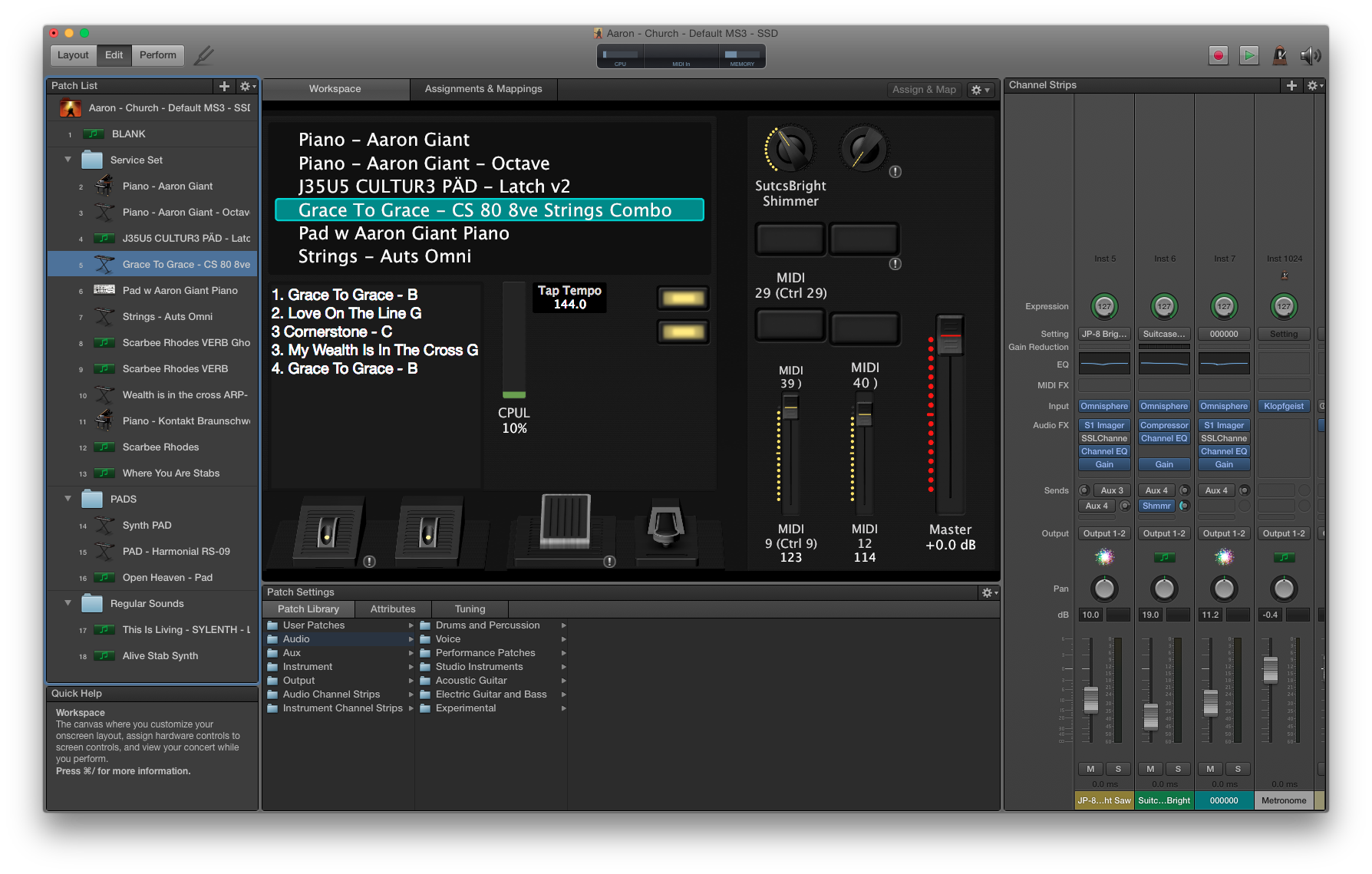
Aaron’s MainStage Patches [Updated December 2019]

[Published March 2016 – Updated December 2019]

Hi All,

This has been a long time coming, but I finally organised my church patches for MainStage and they are ready to share :).

Patches Download Link: https://aarondavidpolley.com/share/Aaron_Patches_2019-12-30.zip

Concert Download Link: https://aarondavidpolley.com/share/Aaron_Church_MS3_Concert.zip

Plugins/Software Used

There is array of different audio plugins & sound sources used in my patches. My older work is primarily just Logic/GarageBand/Mainstage sounds that Apple provides for free (See This Link). My newer stuff ranges in plugins used in different “seasons” where I favoured certain plugins/sounds for a time.  That said, here is an non exhaustive list of what you will need to make use of some of my sounds:

How To Use

Download and unzip my folder of patches and place it into your Music > Patches folder on your Mac. The patches will then be available in your patches library; see: https://support.apple.com/kb/PH13537?locale=en_US

Just download and open the concert to use it 🙂

Please download, try, share, and give me any feedback or questions 🙂

Categories
MacAdmin

Modular and Thin Imaging: The Way Forward

There is a great wave in the MacAdmin community around imaging computers called Modular Imaging.

I am by NO MEANS early to this party; these Mac deployment techniques have been around for quite a while.  I am just hoping to bring some light on the subject for those who haven’t quite grasped it yet.

Also known as Thin Imaging (depending on your approach/technique they can be slightly different) the basic concept of Modular Imaging is that you are applying the preferences, apps, and other elements of a customised configuration to a machine in layers.  As elements of this configuration change, its very easy to update components as opposed to building a whole new customised setup.

Hold On – Whats Imaging!?

gorilla_scratching_head_18047130741

So if  you were like me a few years ago, you were a happy go lucky consultant who sold Macs to businesses and home users.  You were sometimes lucky enough to get paid to go visit these poor souls and be an “IT Guy” for a couple hours while you used your above average awareness of technology to bedazzle them into making their Mac do what they wanted. If they had 3 or 4 Macs to setup, then you went through a process of turning it on, creating a new user from scratch, installing some software from a CD/DVD, setting some preferences, fought with a piece of software that didn’t want to play nice and (if you were smart) wrote it all down so you could do the steps again verbatim 3 more times over…

That was great… those were good days… You billed a lot of time for the work and the customer was happy everything was handled with a fine tooth comb and seemed to work well. The issue though is as they got more machines, and the company grew, their experience was a little different on each machine, they started having different Mac OS X versions and things felt a little “inconsistent”.  You also got a little tired of doing the same process on 5 or 10 different machines… if only there was a way to automate it…

*Rides in on a white unicorn*avatar_1952b14de9ae_128

Building An Image

architect_candella_who_designed_the_red_hook_housing_8d12353v

See, if you were a crafty little Mac Consultant, you knew about cloning and how a Mac is well able to clone hard drive contents and operating systems from one volume/computer to another.  If you replaced the hard drive in a White 2008 MacBook from a 120GB 5400rpm drive to 500GB 7200rpm drive you could just restore/clone the contents from one to the other over FireWire 400 and in a couple hours the computer would “Just Work” like it did before except quicker and with more hard drive space! No re-install or re-setup of an operating system required! Yay!

The concept of imaging built on this principle but realised that if I bake in a core set of users, settings, and apps into a Mac I am setting up, I can save this “Macintosh HD” volume with all of the included hard work to a Disk Image (DMG) file and then restore/copy it on to other Macs so that they all have the same content but I only have to do the “hard” work ONCE. I could then run around with a bootable hard drive containing the DMG and restore it on to as many Macs as I wanted; brilliant!

The Next Step: NetBoot

netboot

Apple invented a wonderful technology (in 1999 according to Wikipedia) called NetBoot.  This allows a Mac to startup from a system that is not physically living on its own hardware.  In otherwise, a bootable system living somewhere on the local network can be used to start up the Mac instead of using the operating system on its internal hard drive.

A variation of NetBoot called NetInstall was also created which means a remote startup system can be used not only to run the local Mac but also install a new/different system on to it. This means you can have a specific Mac operating system installer prepared on a Mac server and start a new mac up using NetBoot to install it. Brilliant!

Using another variation of NetBoot, called NetRestore you can take a prebuilt Mac disk image (like we made in the section above) and put it on a Mac server restore it on to our local Mac over the network. This technology opened A LOT of doors in places like school computer labs as you could have a couple dozen Macs all with the same prebuilt Mac OS configuration in a fairly easy manner.  It also meant that if a kid (or employee of a company) really screwed up a computer system, no worries! Just start the computer up form the NetRestore system and after a few minutes, voila! All back to normal.  Adding more Macs into the lab? No worries as NetRestore was to the rescue…

And It Was Born: Monolithic Imaging

59549_1

So, if Modular Imaging is the new cool way, what is the old way called? Monolithic or Thick Imaging

Opposite of Modular = Monolithic
Opposite of Thin = Thick

Ok, now that we have that covered, let me explain the photo above…

Monolithic imaging is the process of creating an SOE (Standard Operating Environment) by baking in a bunch of core users, settings, and apps (sound familiar?) into a Disk Image (also known just as “image”) and deploying it to a bunch of computers. The issue with this process is you wind up with this bloated image file that you need to restore on to erased computers every time you want to use it and its NOT very agile or flexible to make changes (now the photo starts to make sense…).

In a Monolithic imaging process you need to make a new copy of the image every time you make a change to preferences, update software, etc.  As an example, if you have a full Adobe Master Collection installed in an SOE image for a school lab you could be dealing with a 80GB or 90Gb file that needs to be created and compressed every time you make changes; that is a huge amount of pain and time just in creating image files.  If you get a new set of Macs for a school that need to run the latest macOS but your SOE has been built for an older version it takes a lot of work to get it ready for the new machines.  Again, not an ideal scenario and because your SOE in a lot of cases wasn’t freshly made. It was often upgraded and adapted a few times to get it to the point it was needed making it a bit of a Frankenstein.

Profiles and Packages

profiles-packages

So a time came for me in my journey to MacAdmin-dom (MacAdminhood?) when I was baking in some clever tools into my grand Monolithic/SOE images and deployment technics. I was using tools like DeployStudio (we’ll get to that) to deploy my images over the network to Macs with various packages rolled in on the fly to update/adjust my pre-made images; this made sure I didn’t have to re-create my image every time I need to make changes, just for some things.

I figured out ways to add preference files and other content to User Folder templates so that when network directory users logged into a Mac for the first time they had settings already set for their 1st launch of Microsoft word.  I used configuration profiles made by Apple’s Profile Manager to set dock items, energy saver preferences and other items so I wouldn’t need to bake them into my SOE… things were looking up with a world of intelligent automation at my fingertips.  I was using layering technics to add on top of a pre-baked image to alter its behaviour on the fly…

AutoDMG: No More Waiting For Installers

280653

GAME CHANGER! Ok this is where things really got interesting.  Here is a tool developed by Swedish mastermind Per Olofsson which could take a macOS Installer App and create a fresh DMG file of that OS, PLUS, include some of your favourite Apps/Packages to create an SOE; how cool!

All we had to do was drag the installer App on to a screen, drag a few packages and voila! We had an image with pre-baked stuff we could deploy.  Gone were the days turning on a machine, creating a user, installing some stuff, installing some more stuff, waiting for that to finish to install some more stuff…..

We could use AutoDMG to create an image and either deploy it using a NetBoot style function or stick it on a hard drive and run around doing a Apple Disk Utility restore or Carbon Copy Cloner clones….

And Then It Hit Me…

apple-newton

If I use AutoDMG to make completely blank macOS images and then roll in everything else dynamically as their own “layers” we get a VERY flexible and easily changeable deployment system that evolves as the environment does.  New Macs? No problem. New Macs that need a different operating system? No problem, insert a new AutoDMG image. Want different deployment sets for different departments that all use the same core elements but build different apps per department? No problem….

ZERO time invested into building new DMG files for deployment, rather, 100% of my time spent into building cool logic into deployment workflows with intelligent packages and scripts to customise the Mac being deployed.

I was seeing the fruits of modular elements in my packages and scripts for my SOE deployments; I was hearing the terms Thin Imaging and Modular imaging being thrown around on the web but hadn’t seen it first hand.

Once I connected the dots… my own Modular Imaging workflows were born

True Thin Imaging: Profiles & Packages


hero-jamf-home-1_2x_2880_1354_70_1475876824_ll5

Wait, didn’t I already read this section!?

No, no you didn’t…. well sort of 🙂

So remember when I said Thin Imaging is the same as Modular Imaging? Well its ALMOST the same, except Thin Imaging is ONE STEP FURTHER.

Thin Imaging basically takes all of the workflows you developed for Modular Imaging and removes 1 element: erase the machine and restore a base image.  In true thin imaging you do not need to create a fresh OS with AutoDMG; instead, you install profiles and packages on the fresh (or used) macOS that came with the computer you are “imaging”.

I like to think of true Thin Imaging more as “Provisioning” as you are applying apps and settings to whats already there rather than wiping it and giving it a fresh start.  Of course, the end goal is the same: a Mac with the specific functionality the end user needs to get stuff done (and hopefully enjoy it :))

A Chicago based service call Robot Cloud is a great example of Thin Imaging in action with a tool called JAMF Pro (formerly known as Casper Suite) at its core.

With services like Apple’s DEP (Device Enrolment Program) and VPP (Volume Purchase Programme) devices can hook into a management system at point of activation and start being configured with assigned settings, apps, and even device specific licensing meaning the hands on touch required from IT is very minimal (often non-existent); this is the future of device deployment.

Modular Example

home

“OKAY…. I AM INSPIRED…”

But now we need examples 🙂

Here is a modular workflow example I built for a customer using DeployStudio

The Structure

The server infrastructure is 3 components:

  1. The DeployStudio Server software installed on a Mac Mini (running Server App) as the brains of the operation
  2. The DSS (DeployStudio Server) repository living on a Synology NAS (could live on same server as above)
  3. The netboot/netinstall services running on the Mac Mini with Server App to allow clients to option+N boot and start up from either a 10.10.5 or 10.11.6 netboot image for deployment

The Workflows

screen_shot_2016-08-17_at_12-07-32_pm

In this example there are 3 workflows developed:

  1. eCommerce Restore
  2. General Restore
  3. Video Edit Restore

The workflows have been setup in a modular way so that over time as the deployment requirements evolve its easy to add to the exisiting workflows. They currently represent 2 department specific workflows and 1 general workflow.

Sub Workflows

In order to achieve a simple layering structure, the workflows above actually have no smarts. Each workflow has an Alert to advise whats going to happen but then has nested workflows to do all of the work.  This way if we want to update the OS version used on ALL workflows we edit it in one place, not multiple.

screen_shot_2016-08-17_at_12-10-44_pm

Each top level workflow has the same 3 core workflows and then the others have anything specific to the type of machine.

screen_shot_2016-08-17_at_12-13-02_pm

Core OS Restore does the following:

  • Asks for hostname/computer name
  • Asks for user accounts to create
  • Erases/Partitions the boot drive
  • Restores the fresh/empty macOS image
  • Configures the items requested earlier (hostname, user account, etc)

screen_shot_2016-08-17_at_12-13-08_pm

Core OS Config does the following:

  • Installs a predefined admin user account
  • Installs monitoring software
  • Installs remote support software
  • Installs a configuration profile for managed settings
  • Copies user login script files
  • Copies custom desktop background and custom user logo

screen_shot_2016-08-17_at_12-13-14_pm

Core Apps Install does the following:

  • Installs common apps and plugins like Adobe Flash, Numbers, Pages, Keynote, Firefox, Chrome, and Microsoft Office

If you need to update the version of OS used, use our trusty tool AutoDMG and just replace the OS image in the “__1 Core OS Restore” workflow which is used by all 3 public facing workflows.

If you want to update the version of flash used (with a package created by AutoPKG) then you only need to replace it into the “__3 Core Apps Install” workflow which is used by all 3 public facing workflows.

Making New Workflows

If you want to make a new workflow (i.e. for the Retail department), then you would copy with the “*eCommerce OS Restore” and the “_eCommerce Apps Install” workflows, rename them to Retail appropriate and make sure the top level references the bottom level along with the other 3 core sub workflows.

Automating Your Packages

As mentioned above you could improve on this example setup by implementing a more ongoing and automated app deployment suite like Munki, AutoPKG, and AutoPKGr. This could download regular app updates and deploy them automatically for both new and existing machines. I will write separate blog posts about these tools in the future but Munki-In-A-Box is a great way to get jump started with them.

Make This “Thin”

If you want to do all of this without restoring a fresh OS and just use what the machines already have then you’d make some minor tweaks like removing the re-partition and restore parts of the Core OS Restore workflow

Benediction

holy-halo25

Hopefully this post has been entertaining and somewhat enlightening.  If you have any questions or comments feel free to enter them into the form below.

[contact-form][contact-field label=’Name’ type=’name’ required=’1’/][contact-field label=’Email’ type=’email’ required=’1’/][contact-field label=’Website’ type=’url’/][contact-field label=’Comment’ type=’textarea’ required=’1’/][/contact-form]


Categories
MacAdmin

macOS Sierra 10.12 Compatible Apps


Here is a great resource I have found for checking App compatibility with macOS Sierra.

Bookmark and share as desired :).

http://forums.macrumors.com/threads/macos-sierra-10-12-compatible-apps.1977335/

Categories
MacAdmin

JNUC 2016

Hi All,

As you may have seen I recently altered my web site to be more in line with my real day to day life, not just the music side; I am now “Musician & MacAdmin”. You can see my latest MacAdmin posts on the front page as well as my Music related items and news.

I just got back from JAMF Nation User Conference (JNUC) 2016 in Minnesota and I loved it. It was a great atmosphere for learning  and collaborating with our MacAdmin minds. My employer Max Computing sent me for which I am grateful.

Over the coming days I will try to post a summary of different sessions/events I enjoyed, but here is a top level summary

  1. The opening session(s) featuring CEO Dean Hager – he is an inspiring man and charismatic to say the least. The work he is personally doing in the social justic realm as well as help the JMAF Foundation do is remarkable and not common in corporations
  2. The renaming of the company from JAMF Software to “JAMF” to support product rebranding of Casper Suite and Bushel to JAMF Pro and JAMF Now respectively
  3. JAMF Patch Management – seeing the direction they were going and how it stacked against solutions like Munki
  4. Shopify’s Managing Devices in an Open Culture: great look at how their IT staff took a bunch of tech heads used to being the master of their own machine and convinced them that Mac Management was a good thing for them and the company
  5. The Mac@IBM presentations: truly an inspiring moment to see how they have become an Mac deployment in enterprise flagship
  6. Making Self Service a killer app from Paul Cowan of Waikato University in New Zealand
  7. User configuration framework: a great new tool developed for configuring apps and services at user login AND utilising sign on password for an SSO (single sign on) experience. https://github.com/alex030/UserConfigAgent
  8. Using SWIFT and the JSS API: great session as an early introduction to coding in SWIFT as well as how to do some basic functions for importing machine placeholders into the JSS (JAMF Software Server aka Casper aka JAMF Pro) for automating device enrolment
  9. Profiles: An IT Admins Best Friend; from the boys at dataJAR in the U.K. Hilarious and insightful it gave a great backbone understanding on managed preferences and how they have evolved plus some best practice

Overall it it was a great conference and I hope to share more soon. In the meantime you can check out the discussion links for each session and see if the slides have been posted:

https://www.jamf.com/jamf-nation/events/jnuc/2016/sessions